Go to Transaction tab > Payable > Enter Vendor Prepayment
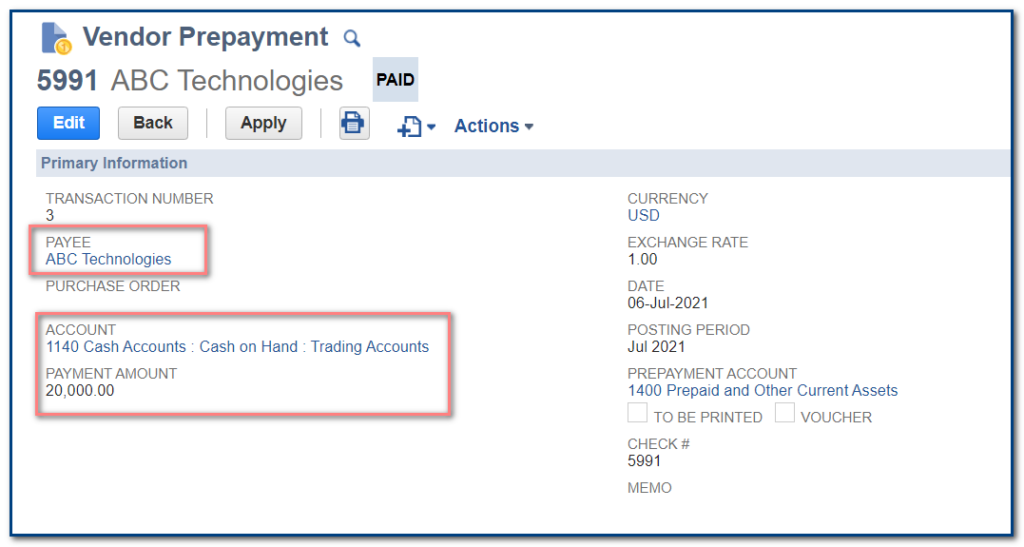
- In the Payee field, select the respective vendor from the dropdown list.
- The Currency field autofill’s with the default currency for the vendor. We can change this value if there is more than one currency for the payee. This field is available when using the Multiple Currencies feature.
- The Exchange Rate depends on the currency selected for the payee. If the currency of the Payee is different from your base currency, the Exchange Rate field shows the corresponding exchange rate value.
- The Prepayment Account field autofill’s with the default prepayment account for the payee, and it cannot be changed from this page.
- Select the respective account payable Account and select a bank account for this payment. The bank account currency must be the same as the transaction currency.
- Enter the Payment Amount for this prepayment
- Save.
- When the prepayment record is saved, the transaction’s status is paid. The bank account is credited, while the prepayment account is debited.
Applying Vendor Prepayments Manually:
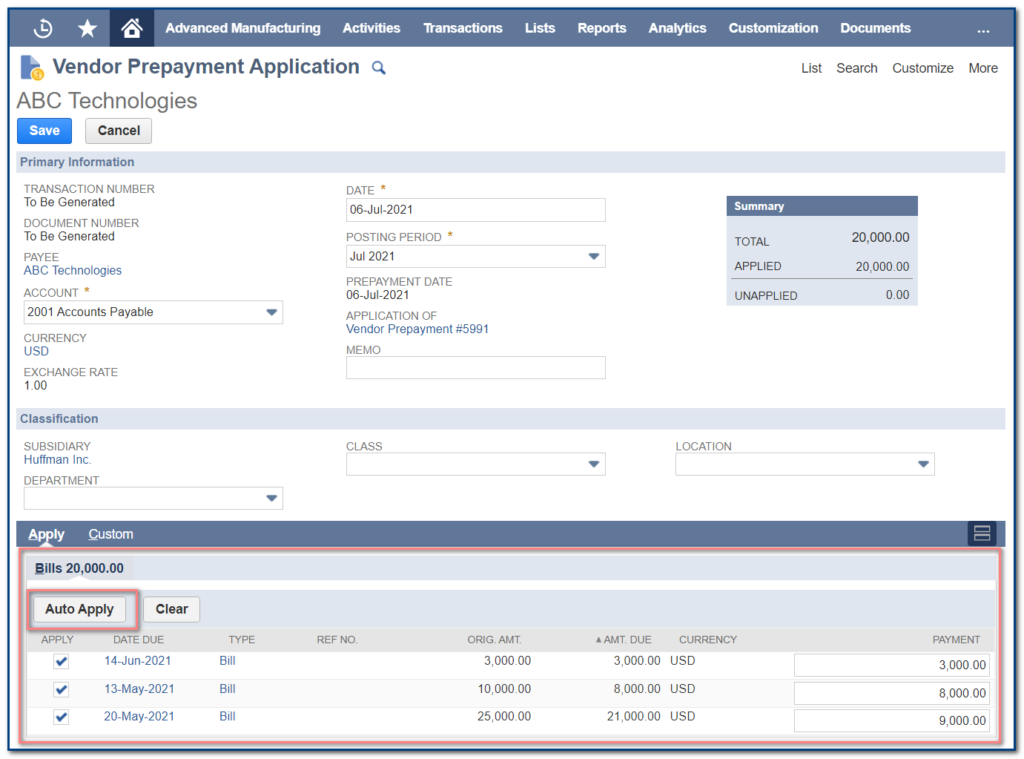
- After saving the Vendor prepayment record in view mode Apply button is displayed. While clicking on that button it will navigate to the Vendor Prepayment application.
- When applying a vendor prepayment against multiple bills manually, you can choose how the prepayment amount is allocated to each bill.
- The Bills subtab shows the vendor bills available for application.
- Check the Apply box for the bill where you want to apply the prepayment. For the selected bill, enter the Payment amount for this application.
- You can apply the full prepaid amount in a single application, or multiple applications using the same vendor prepayment.
- You can apply one prepayment to a single bill or to multiple bills, up to the total prepayment amount.
- Alternatively, click Auto Apply to select bills and amounts automatically. Auto Apply applies the prepayment amount on bills up to the total prepayment amount.