To set up SuiteAnalytics Connect permissions using Manage Roles:
- Navigate to Setup > Users/Roles > User Management > Manage Roles.
- Click Customize next to the name of the role for which you would like to add the SuiteAnalytics Connect permission.
- Click the Setup tab under the Permissions tab.
- Add the SuiteAnalytics Connect permission.
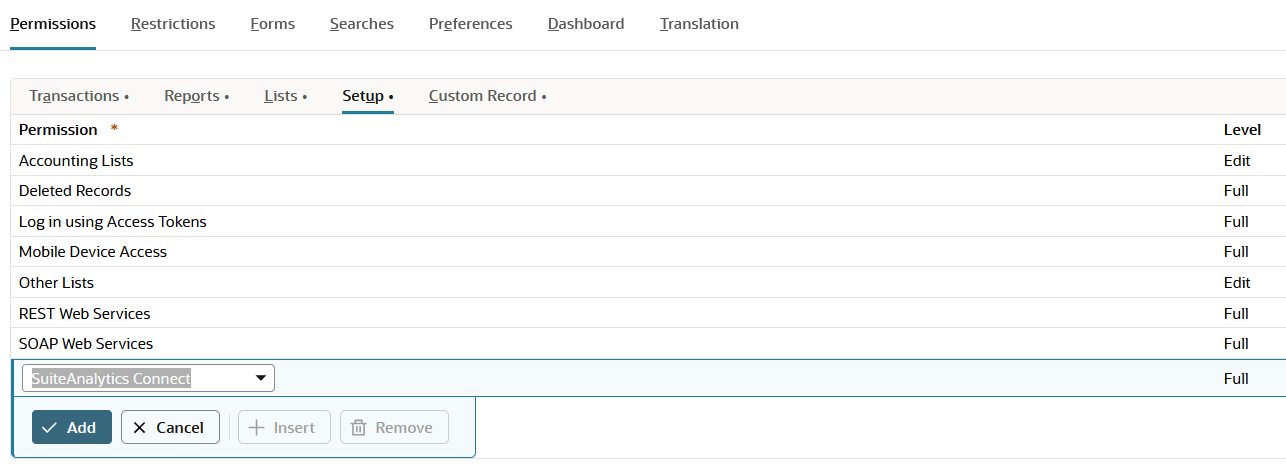
5.Optionally, add the SuiteAnalytics Connect – Read All permission.
6. Click Add.
7. Click Save
To set up SuiteAnalytics Connect permissions using the Employee record:
- Navigate to Lists > Employees > Employees.
- Click Edit next to the name of employee.
- Click the Access tab.
- Select the role you would like to grant SuiteAnalytics Connect permission, and click the Open icon next to it.
- Click the Setup tab under the Permissions tab.
- Add the SuiteAnalytics Connect permission.
- Optionally, add the SuiteAnalytics Connect – Read All permission
- Click Add.
- Click Save.