Scenario: There are two Revenue Arrangements merged into one. Each of these include items with GroupSum Formula. Users notice that the Revenue Amounts in the merged Revenue Arrangement are different from what they have expected.
Prior to merging, there are two sets of Sales Orders and Revenue Arrangements.
The first Sales Order and Revenue Arrangement have the following items:

The configuration of the above items are as follows:
- Item A and B are assigned to Revenue Allocation Group GroupA (Item record > Revenue Recognition/Amortization sub-tab > Revenue Allocation Group field).
- Item C is not assigned to any Revenue Allocation Group. Instead, it has an assigned GroupSum Formula: GROUPSUM(GroupA,{amount})*.80. The formula aims to set 80% of the Total Sales Amount of all items assigned to Revenue Allocation Group GroupA as the Calculated Fair Value of Item C.
On the other hand, the second Sales Order and Revenue Arrangement have the following items:

The configuration of the above items are as follows:
- Item D is assigned to Revenue Allocation Group GroupA (Item record > Revenue Recognition/Amortization sub-tab > Revenue Allocation Group field).
- Items E and F are assigned to Revenue Allocation Group GroupB.
- Item G is not assigned to any Revenue Allocation Group. Instead, it has an assigned GroupSum Formula: GROUPSUM(GroupB,{amount})*.80. The formula aims to set 80% of the Total Sales Amount of all items assigned to Revenue Allocation Group GroupB as the Calculated Fair Value of Item G.
After merging, users expect that the Revenue Allocation will be as follows:
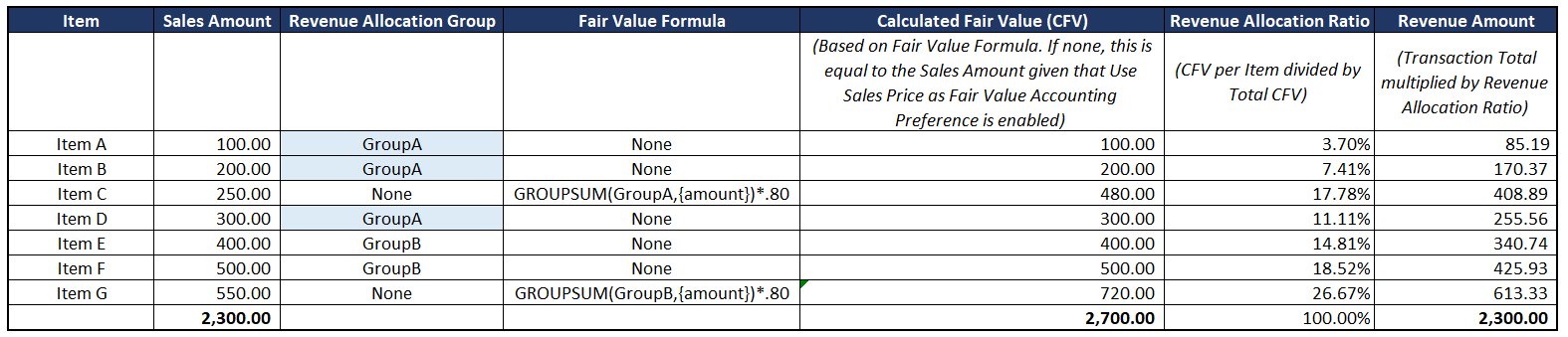
On the above table:
- Transaction Total is 2,300.00. To get the Revenue Amount, we just have to multiply the Revenue Allocation Ratio to the Transaction Total.
- There are three items that are assigned to Revenue Allocation Group GroupA while two items are assigned to GroupB.
- The users expected that the system will get 80% of the Total Sales Amount of Items A, B and D as the Calculated Fair Value of Item C, which is 480.00.
However, the merged Revenue Arrangement Allocation Detail is actually:
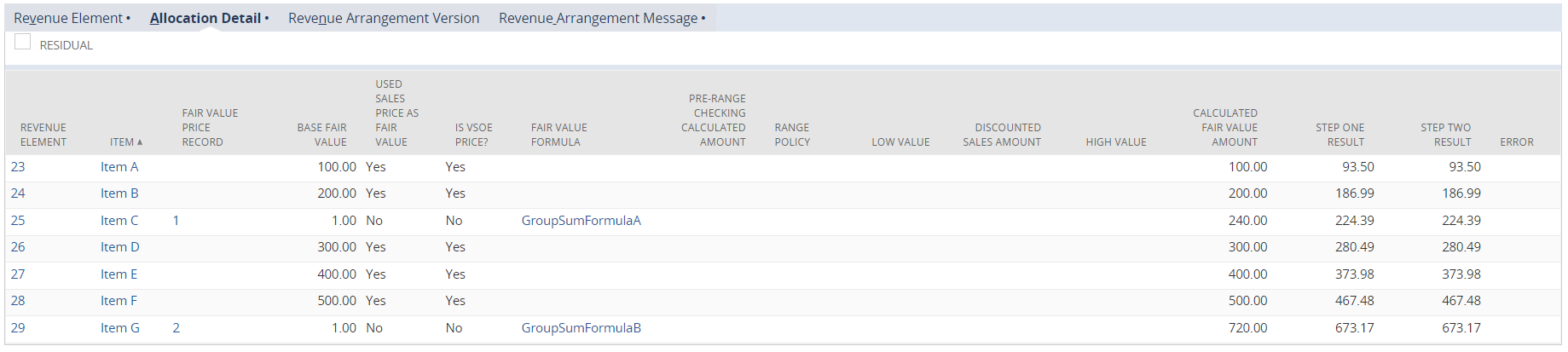
- Instead of Item C having a Calculated Fair Value Amount of 480.00, it had a CFV of 240.00. This amount is 80% of the Total Sales Amount of Items A and B. Apparently, Item D is not included in the computation of the Calculated Fair Value of Item C despite it belonging to GroupA.
Explanation: After merging two arrangements with GroupSum formulas, it uses the Reference ID of the element in the GroupSum formula to determine the new Calculated Amount. In the above scenario, there are two Reference IDs as a result of merging:
- SalesOrd_2242
- SalesOrd_2243
These correspond to the source Sales Orders of the Revenue Elements.
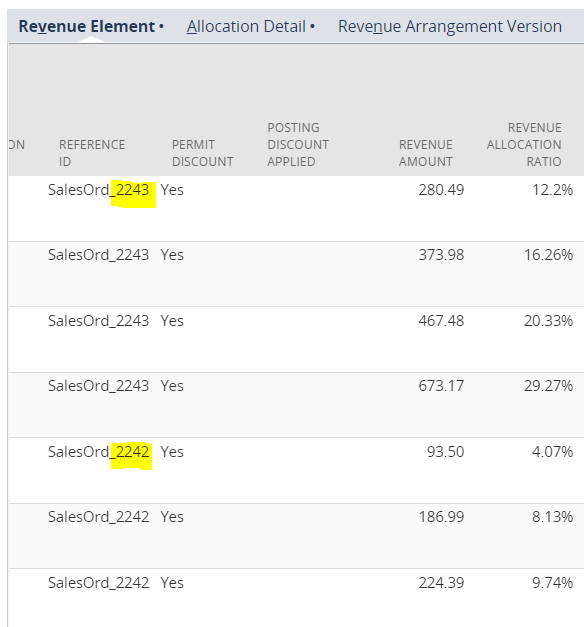
To conclude, the system still computed the Calculated Fair Value Amounts based on the GroupSum formula but it categorized the Revenue Elements based on their corresponding Reference IDs. Items A, B and C belong to SalesOrd_2242 while Items D, E, F and G belong to SalesOrd_2243. Since D does not belong to SalesOrd_2242, only Items A and B were included in the computation of the Calculated Fair Value of Item C.