Creating a new parent company is not as straightforward as adding a new child subsidiary. In order to be able to add a new parent company, the “Allow Subsidiary Hierarchy to be Modified” option should be activated. To do so, go to Setup > Company > General Preferences with the administrator role. Then, click on the calendar icon to set the last day of the modification period.

Note: The “Allow Subsidiary Hierarchy to be Modified” general preference is a date field. Use this field to specify the last day of the subsidiary hierarchy modification period. The modification period can be a maximum of 30 days long. After the specified day, you can no longer modify your subsidiary hierarchy. However, you can set the preference again.
If you are not using the administrator role, a set of permissions is needed to enable the “Allow Subsidiary Hierarchy to be Modified” general preference. Those permissions are the following:
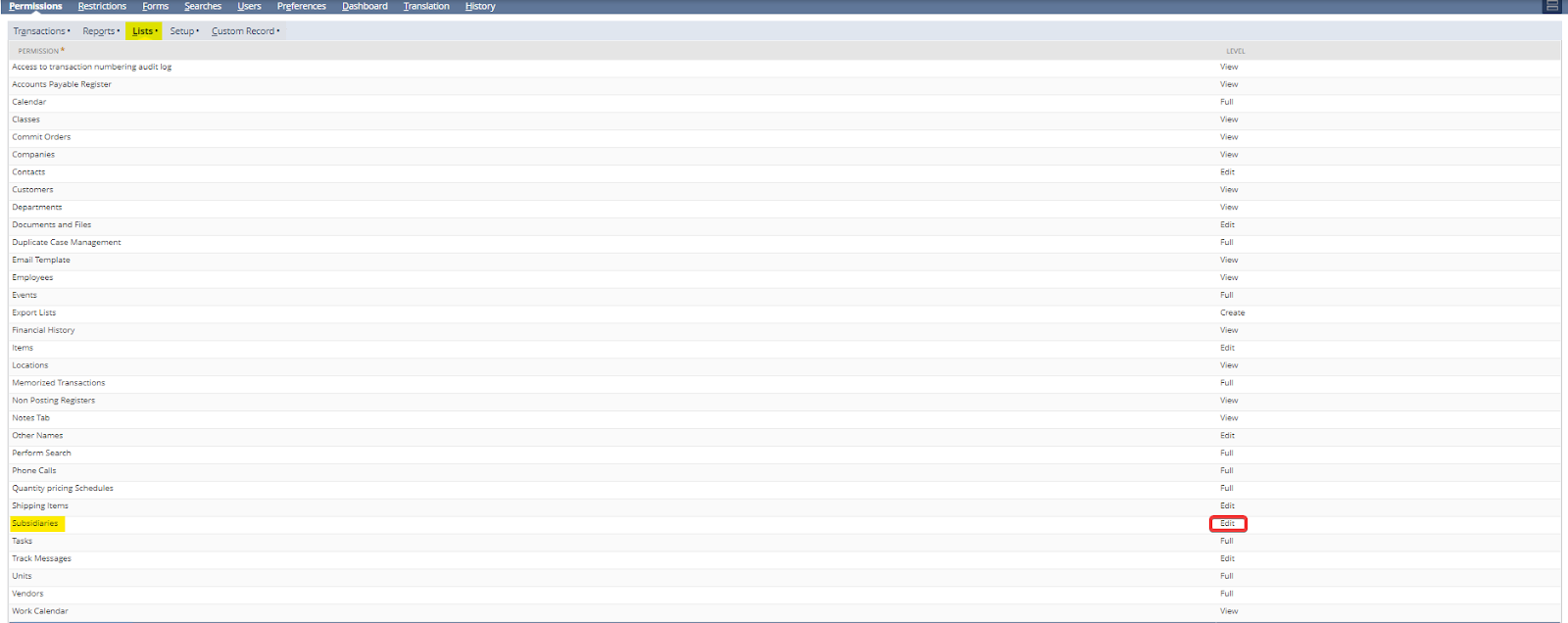
- On the Lists subtab of your role, you must enable the Subsidiaries permission with an edit or full level. You must also have access to all subsidiaries.
- On the Setup subtab, you need to have a full level Set Up Company permission to set the “Allow Subsidiary to be Modified” general preference. You should also have full level Subsidiary Hierarchy Modification permission to modify the subsidiary hierarchy structure. Besides, you should have access to all subsidiaries.
